Keyman Developer 8.0 includes the facility to create a combined keyboard and Keyman Desktop installer. Here’s a quick walkthrough on how to do this.
Keyman Developer 8.0 includes the facility to create a combined keyboard and Keyman Desktop installer. However, it is not immediately obvious how to do this. In particular, it may be hard to know where to find the install package for Keyman Desktop, as Keyman Desktop is distributed in through an .exe installer but Keyman Developer asks for an .msi installer! So here's a quick walkthrough.
-
Create your keyboard + package. See the Keyman Developer documentation for tutorials and more information!
-
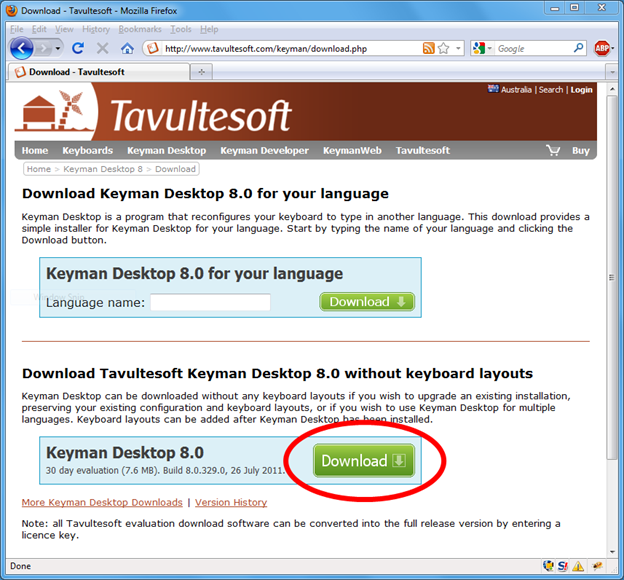
Download the latest Keyman Desktop .exe installer from http://www.tavultesoft.com/keyman/download.php
-
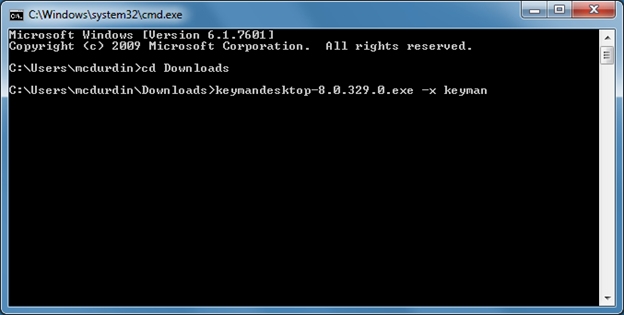
You'll need to extract the Keyman Desktop .msi file from the .exe installer to your hard drive in order to bundle it in your own .exe installer. Assuming you saved the installer into your Downloads folder, start a command prompt, change directory to the Downloads folder, and run the installer with the -x targetfolder parameter (make sure you create the targetfolder before running the command). In the following example, the installer will extract into C:UsersmcdurdinDownloadskeyman.
-
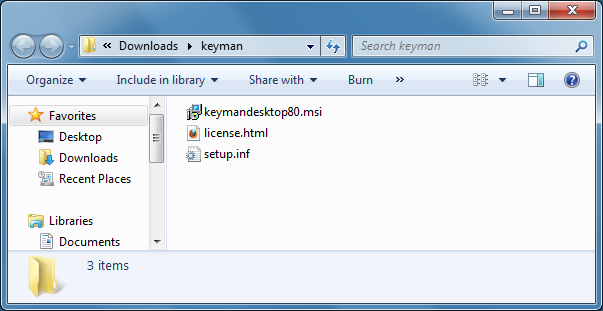
A couple of dialog boxes later, you'll be left with the .msi file and a couple of other bits and pieces in the folder you chose to extract to:
-
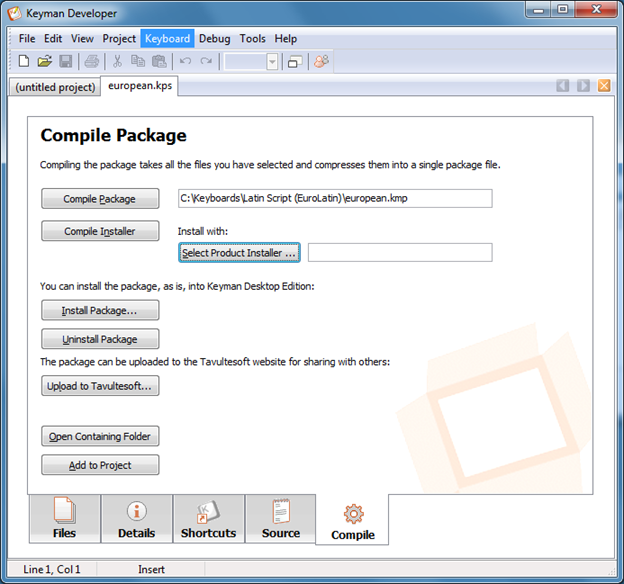
Now load up your keyboard package in Keyman Developer, and jump to the Compile tab. Click Select Product Installer and choose the .msi file in the targetfolder.
-
Finally, click Compile Installer. You'll end up with an .exe installer named keymandesktop80-packagename.exe. You can rename this file to whatever makes sense for you.
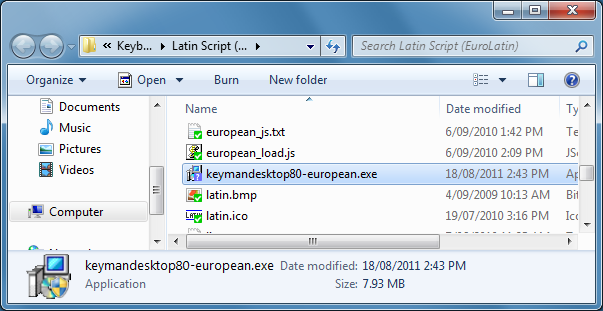
-
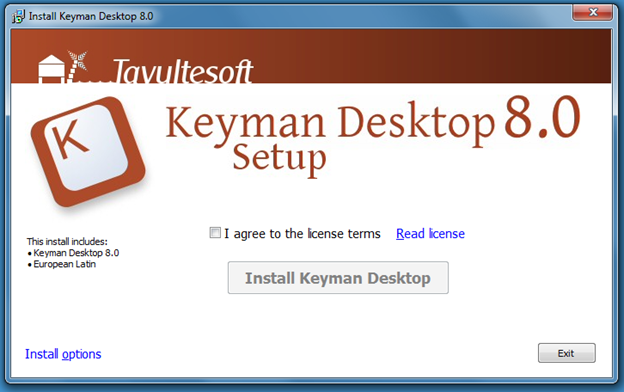
Starting the installer will present the following splash screen. Note the blurb on the left hand side which lists the keyboards included in the installer.
One final note: if you are planning to distribute your keyboard through the Tavultesoft website, we will automatically bundle your keyboard package with the latest version of Keyman Desktop, so you only need to worry about sending us your .kmp package file.
5 thoughts on “How to Build a Combined Keyboard + Keyman Desktop installer with Keyman Developer 8.0”
Md.Amirul Molla · February 23, 2018 at 1:05 pm
i can not succes to combine two letter in bengali language. What sloution
Md.Amirul Molla · February 23, 2018 at 1:07 pm
i have bijoy bangla keyboard How can i make this keyboard by tavoulate devoloper
Marc Durdin · February 24, 2018 at 2:45 am
Hi, this is not a great forum for technical support. I suggest you write at https://community.software.sil.org/c/keyman with details of the problem you are experiencing and what steps you have already taken to try and solve it, and we’ll be able to assist you there.
Abebe sientayhu · March 16, 2018 at 2:15 pm
Iam Like bast / keybloger
Nepal · August 25, 2020 at 8:01 am
Thank you this was really helpful